Why Every Coach, Teacher & Team Leader Needs to Know About the NearHub S Max
Working the Board
If you’ve ever been in a room where you need to share ideas, then you’ve probably been in a room that looks like this:
There is a board at the front of the room – usually a whiteboard with dry-erase markers. If available, there will also be a projector you can connect your laptop or an in-room computer to. If you are especially fortunate, that projector may even allow wireless connectivity from an iPad or mobile phone.
Chances are, if this is the case, you’ve also experienced the following:
- The dry-erase markers are… dry. Or missing.
- The projector doesn’t have a port that matches a port on your laptop
- You don’t have a login for the in-room computer
- The projector bulb is near the end of its life – so the only way to see it is to turn off the lights. Which is great for audience members wanting to take a nap, but less optimal for your presentation, meeting, coaching session, or class.
How the NearHub S Max solves all these issues – and opens a whole new world of possibilities
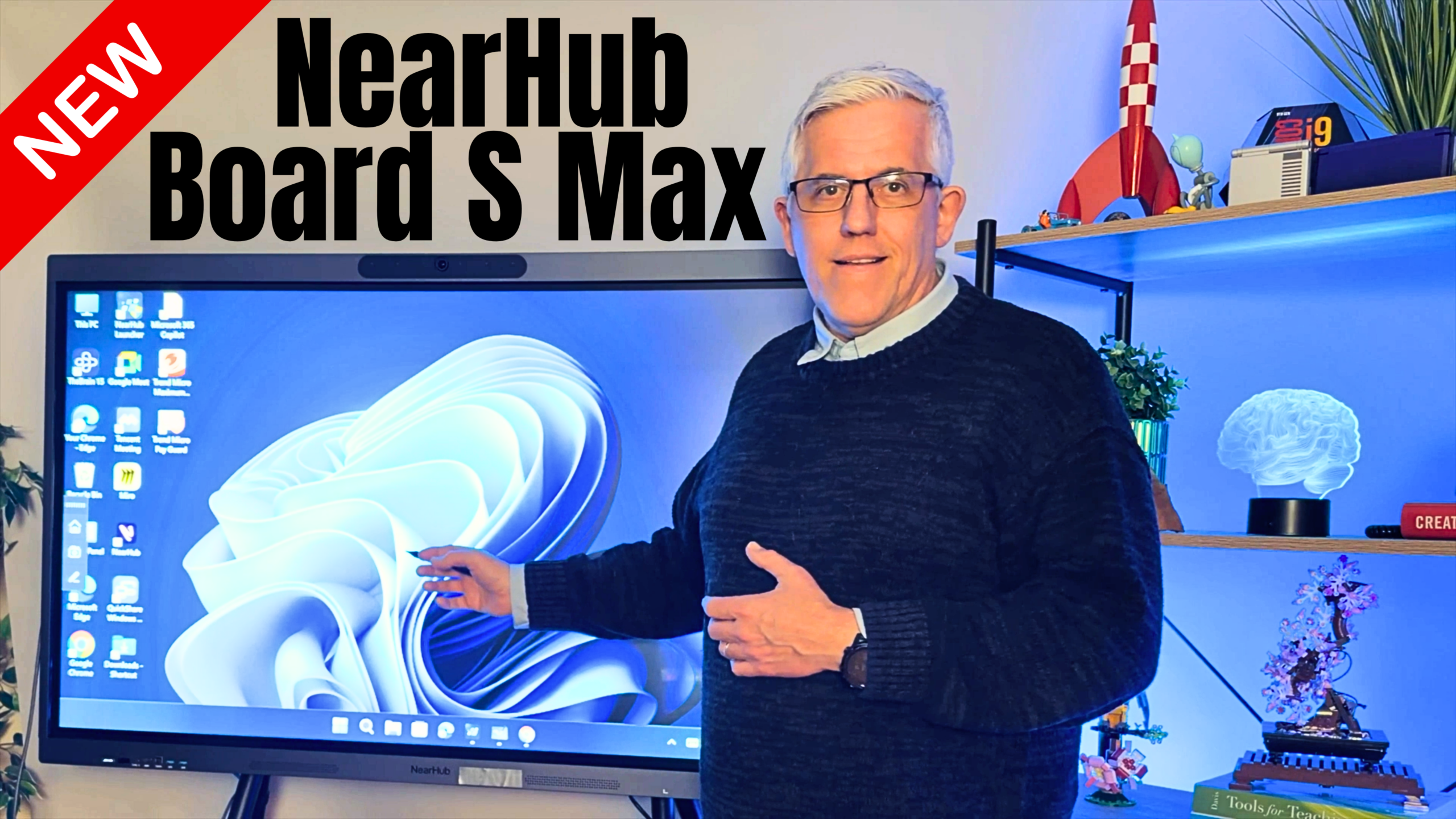
This is where the NearHub S Max can make a huge difference. This new board from NearHub offers a clear, bright, and full-featured touch display to help you engage your audience.
You can visit the NearHub Store on Amazon here:
You can see a video overview here on my YouTube channel.
Infinite Canvas (and infinite markers)
The NearHub S Max provides an infinite whiteboard canvas – so you can write ideas, share images, and create brainstorming content without ever running out of “markers” or ever having to erase the board (unless you want to).
This is very powerful for developing ideas and returning to them as you build on and discuss them.
Full-featured and runs Windows 11 Pro
The new S Max has moved beyond being an Android-based board and now runs Windows 11 Pro. This means you can install Windows Applications directly onto it.
Some features:
- A 4K UHD touchscreen with 6ms latency, supporting 40-point multi-touch — meaning up to 8 people can write on it simultaneously.
- The board is powered by a 12th Gen Intel Core i5 processor, 16GB of RAM, and 256GB of storage.
- Most importantly, the S Max now runs Windows 11 Pro, meaning it’s fully compatible with the software your audience already uses. Wall-mountable or mobile on a rolling stand — flexible for any space.
For Teachers & Educators — A Classroom Game-Changer
As a teacher, I’m always looking for EdTech tools that make an actual impact. This board really delivers for teaching and training.
- Interactive lessons: Annotate PDFs, websites, and presentations directly on screen.
- Student engagement: Up to 4 or even 9 devices can share their screens simultaneously, making comparisons and peer collaboration a breeze.
- No more tech headaches: The core features — the digital whiteboard, web browser, built-in OS, and HDMI connectivity — require no subscription.
- Wireless screen sharing: Students can mirror their devices to the board for presentations and show-and-tell moments.
The annotation features are especially helpful for me. I can write directly over the screen to highlight buttons, where to click items, and other software features (I teach technology).
If you teach any subjects where you need to point out and highlight items (think maps, art, design, math, etc, ALL the subjects), then this board makes a difference. You can also easily erase the highlights, leaving the original image intact.
For Meeting Rooms & Business Teams — Collaboration at Its Best
Meetings are an area that NearHub emphasizes on their website as being one of the primary use cases for this board.
You can tell that they designed the board for this as it has an incredible camera, microphone, and audio.
- The built-in 4K 130° wide-angle camera features AI functions including Gallery View, Auto-Framing, and Speaker Tracking, along with 8 omni-directional microphones.
- Connect to Zoom or Teams in under 10 seconds — no separate conferencing hardware needed. Supports up to 9 users screencasting simultaneously via AirPlay, Chromecast, or HDMI.
- Annotations made during meetings can be shared directly to Teams, Zoom, or saved to the cloud. Great for hybrid teams — remote and in-room participants feel equally included.
In my own uses for the board, I use the meeting features a little less. This is because I have it in my YouTube Studio. However, I love the sound and camera for content creation.
Brainstorming & Idea Sharing — Unleashing Creativity
If you do any brainstorming, creative thinking, or planning (alone or in groups), this board is a wonderful tool.
- The NearHub Canvas cloud-based whiteboard lets collaborators join from phones, tablets, or laptops — not just the physical board.
- The freehand stylus and brush modes let users create mind maps, diagrams, and sketches, unleashing creativity at any moment.
- Zero-gap bonding technology means there is no air gap between the glass and the display — digital ink appears to flow directly from the stylus tip, feeling instant and natural, just like pen on paper.
- Ideas are saved automatically — no more photographing whiteboards before erasing them!
For Coaches — A Secret Weapon
One of the secret powers of this board that I don’t see as much conversation about, but strikes me as a HUGE opportunity, is with coaching.
Coaching is a conversation. All types of coaching involve a dialog, sharing ideas visually, and building on those ideas. I’m planning on building some more coaching into my own work and think this board will be a significant part of my toolset.
(and, if you are interested in my coaching – you can come join our community over on Skool where I offer free resources already and will be offering more in the future – including coaching sessions)
Click here for the Skool Community
Some of the uses I see for coaches are:
- Sports coaches: Annotate game footage frame by frame; draw plays and tactics directly on video.
- Business & life coaches: Create visual frameworks and journey maps with clients in real time; save and share sessions instantly.
- Fitness & wellness coaches: Display and annotate technique videos; run hybrid sessions with remote clients joining via video conference.
My Hands-On Experience
My original NearHub S55 board was one of my favourite tools for teaching. So then this board was sent to me, I was wondering if it would be a minor update or something completely new.
It is completely new.
All the best features of the predecessor board are there, but running Windows 11 Pro and the upgraded AV make it a significant upgrade.
Something I also really appreciate about the board is the number of ports for connectivity. I’m using the HDMI out to connect to a video capture card when I want to record the screen, but there are many uses for the ports – keyboards, external storage, and more.
More to Explore
The board is something I continually discover new uses for. I’m sure I’ll be making more videos both about and with the board in the future.
Watch the video above to see the board in action.

This is the Android Version
Here is the link to the NearHub Amazon store NearHub Store